Supported Meets & Galas - User Guide
Complete guide to using the interactive calendar system
Quick Navigation
Overview
The Supported Meets & Galas calendar is a comprehensive tool for viewing and managing upcoming swimming competitions. It displays meets supported by Tonbridge Swimming Club with detailed information and multiple viewing options.
Getting Started
Accessing the Calendar
Access the gala fixture list from the Tonbridge Swimming Club website at www.tonbridgeswimmingclub.co.uk. The calendar works on both desktop and mobile devices with optimized layouts for each.
Initial View
By default, the calendar opens in Calendar View, showing a monthly calendar grid with color-coded events.
View Modes
Calendar View (Default)
- Desktop: Full monthly calendar grid with all events visible
- Mobile: Compact monthly view optimized for small screens
- Color-coded events by level
- Current day highlighted with bold green border
- Month/year display with navigation
- Click any event to see full details
List View
- Desktop: Full table with all meet details in columns
- Mobile: Card-based layout for easy scrolling
- Toggle: Click "List View" button to switch, then "Calendar View" to return
Color Coding System
Events are color-coded by competition level for easy identification:
Filtering
Use filters to find specific meets quickly and efficiently:
Filter Options
| Filter | Description |
|---|---|
| Date Range | Enter start and/or end dates (DD/MM/YYYY format) |
| Level | Select from X, L4/Team, L3, L2, L1, or "All" |
| Course | Filter by Long Course (50m) or Short Course (25m) |
| Venue | Search for specific pool/location |
| Target Squads | Find meets for specific squad groups |
Using Filters
- Desktop: Filters always visible at top of page
- Mobile: Click the F (filter icon) button in toolbar - filters slide down when opened
Event Details
Viewing Details
Click any event (in Calendar or List view) to open the detailed information modal:
Information Displayed:
- Date: Competition dates
- Level: Competition level with full description
- Venue: Pool name/location (clickable)
- Course: Long Course (50m Pool) or Short Course (25m Pool)
- Target Squads: Intended squad groups
- Coach: Confirmed named coach (if assigned)
- Info Link: Meet information page (if available)
Adding Events to Your Calendar
Add to Calendar Options
In the event details modal, click "Add to Calendar" to reveal three options:
- Google Calendar - Directly adds event to your Google Calendar (requires Google account login)
- Outlook Calendar - Opens in Outlook desktop or web (works with Microsoft accounts)
- Download .ics - Downloads universal calendar file compatible with Apple Calendar, Thunderbird, and most calendar apps
What Gets Added
All calendar exports include:
- Event name with level
- Full date range
- Venue and course information
- Target squads and coach details
- Link to meet information
- Important warning: "Check with Head Coach/Lead Coach before entering"
Subscribe to Calendar
Automatic Updates
Instead of adding individual events, subscribe to receive automatic updates whenever meets change:
Mobile: Scroll down to find "Subscribe to Calendar" button below the calendar
Subscription Instructions
For iPhone/iPad:
- Copy the subscription URL (webcal://)
- Settings → Calendar → Accounts → Add Account
- Select "Other" → "Add Subscribed Calendar"
- Paste URL and save
For Android (Google Calendar):
- Copy the subscription URL (convert webcal:// to https://)
- Google Calendar → Settings → Add Calendar → From URL
- Paste URL and add
For Desktop Apps:
- Outlook: File → Account Settings → Internet Calendars → New
- Apple Calendar: File → New Calendar Subscription
- Thunderbird: Right-click calendars → New Calendar → On the Network
Benefits of Subscription
- ? Calendar automatically updates when meets change
- ? No need to manually add each event
- ? Always have the latest information
- ? Can unsubscribe anytime
Mobile-Specific Features
Optimized Layout
- Compact Header: Minimal space for website integration
- 3-Button Toolbar: Enter Meet | List View | F (filter icon)
- Roboto Font: Used for calendar events for better readability
- Larger Touch Targets: All buttons sized for easy tapping (38px minimum)
- Responsive Text: Font sizes optimized for small screens
- Perfect Alignment: All buttons aligned and same height
Subscribe Button Position
On mobile, the subscribe button appears below the calendar to save valuable top space.
- Rotate to landscape for more calendar space
- Use pinch-to-zoom if needed
- Filter icon (F) saves screen space
- Today button helps navigate quickly
Entering Meets
"Enter Meet" Button
Located in the top toolbar (all views), this button takes you to Swim Club Manager where you can:
- Enter swimmers for upcoming meets
- View entry details
- Manage meet entries
- Invitations have already been emailed out by the club
- You have the required qualifying times (if applicable for that meet)
- The meet is currently open for entries
Tips & Best Practices
Finding Meets Quickly
- Use Level filter to see only your swimmer's level
- Use Date Range to focus on specific period
- Use Calendar View for visual overview
- Use List View for detailed comparison
Before Entering
- ? Always click event to view full details
- ? Check target squads match your swimmer
- ? Verify venue location (click venue name)
- ? Confirm with coach before entering
- ? Use "Enter Meet" button to go to Swim Club Manager
Staying Updated
- Subscribe to calendar for automatic updates
- Check regularly for new meets
- Note that dates/details may change - check meet info links
- Enable notifications in your calendar app
Troubleshooting
Calendar Not Loading
- Refresh the browser page
- Check internet connection
- Clear browser cache
- Try a different browser
Events Not Showing
- Check filters - ensure not too restrictive
- Try "All" in level/course filters
- Clear date range filters
- Verify events exist for selected period
Subscribe Not Working
- Ensure using correct URL format (webcal:// for most apps)
- Some apps require https:// instead of webcal://
- Check calendar app permissions
- Try removing and re-adding subscription
Buttons Not Aligned (Mobile)
- Ensure using modern browser (Chrome, Safari, Firefox, Edge)
- Update browser to latest version
- Clear browser cache and reload
Colors Hard to See
- Mobile uses brighter colors automatically
- Try adjusting screen brightness
- Check dark mode settings
- Device display settings may affect colors
Meet Not Appearing in Swim Club Manager
- Meet invitations may not have been sent out yet by the club
- You may not have the required qualifying times for that meet
- The meet entry window may not be open yet
- The meet may have reached capacity or closed for entries
- If in doubt, contact your Lead Coach to confirm eligibility
- 19 Sep 2025Good Luck at the Para World Champs Iona
 Iona begins her Para World Champs on Sunday 21 September
 - 18 May 2025IONA selected for her 1st World Para Swimming Champs
 Iona off to Para World Champs
 - 20 May 2024It's official...IONA WINNIFRITH is off to the Paris Paralympic Games
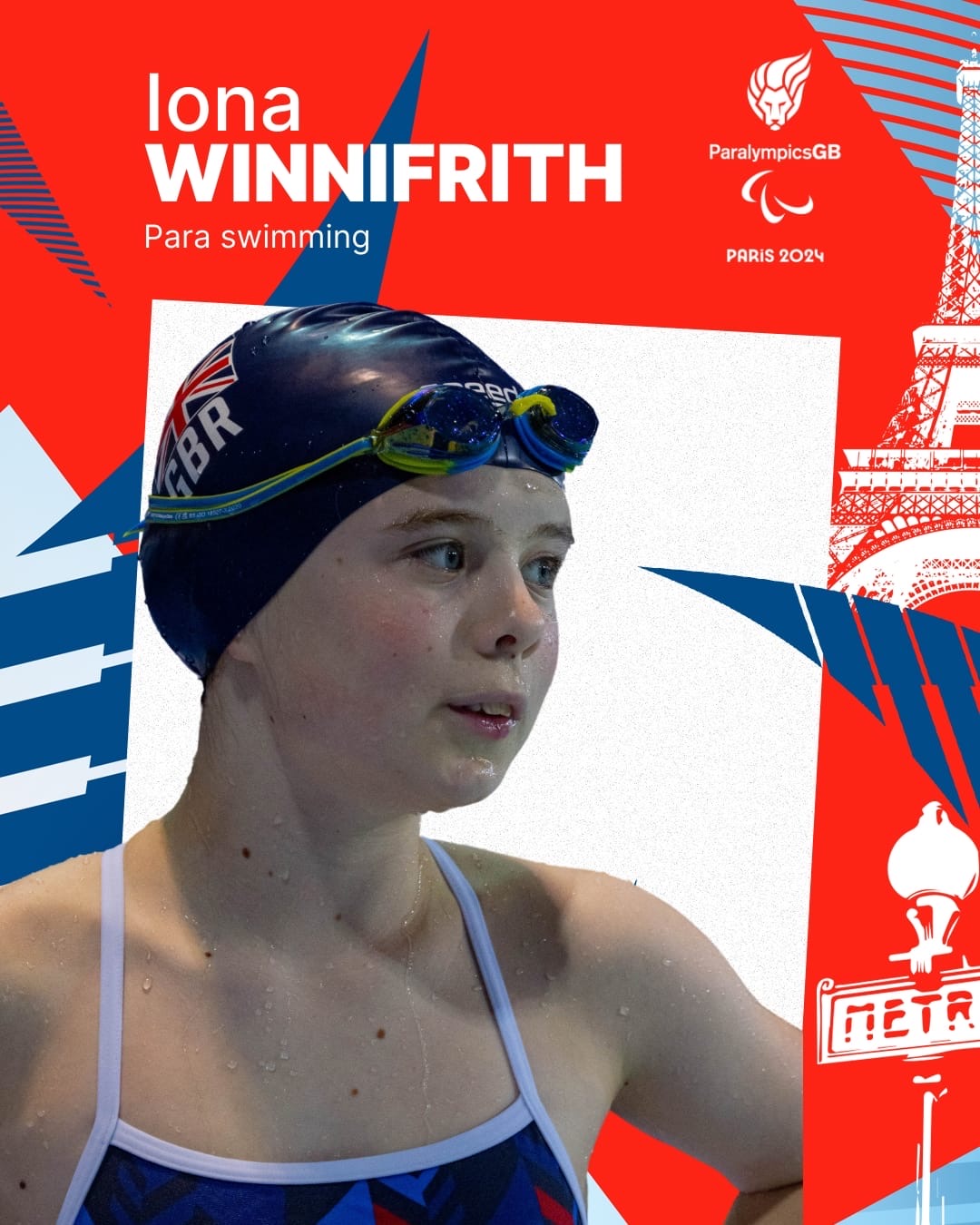 Huge congratulations to Age Development Squad's Iona Winnfrith on her selection to the GB team for the Paris Paralympic Games. So thoroughly deserved recognition for this rising superstar. Iona is a true example to us all as she trains hard at every session and always comes away smiling...... Well done Iona
 - 29 Apr 2024Iona wins double European Para Golds!!!!
Team TSC's Iona continues to shatter the record books with phenomenal swims to win double European Para Golds in Madeira. - 08 Apr 2024Iona wins British Championship Gold
Iona wins British SB7 100m Breaststroke title - 22 Jan 2024Tudor League Round 1
Brilliant result from our awesome Tudor League swimmers achieving 17 PBs! We came an impressive 4th with lots of cheering. It was LOUD! - 08 Dec 2023HUGE CONGRATULATIONS to Iona W as her first British Para Swimming Record
HUGE CONGRATULATIONS to Iona W as her first British Para Swimming Record has now been ratified by British Swimming ???? Iona set a new SB7 Category British record in 100m Breaststroke at SERs last month. Well done Iona - the first of many British records we are sure.